Income Statement Modification
Posted on 2025-12-17 Updated on 2025-12-17Income Statement Modification: used to create a row in the income statement and make a formula for that row. Once you enable "Apply income statement modifications", total income in reports will be recalculated according to the rows and formulas you define in this setting. So you need to create at least 1 data row in this setting.
Reset Income Statement Modification: It will delete all data income statement modification and recreate based on income account list.
Apply income statement modifications:
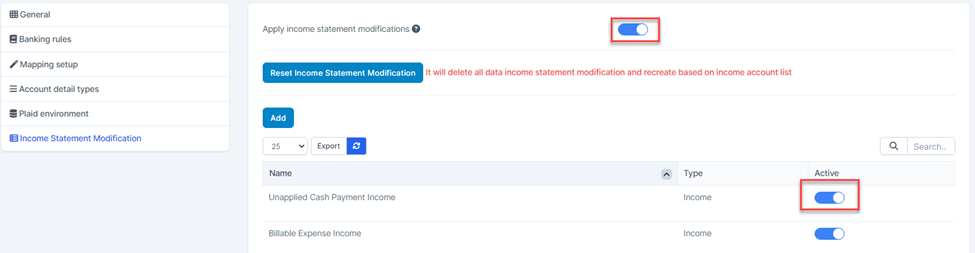
If enabled, activated rows will be displayed in the report.

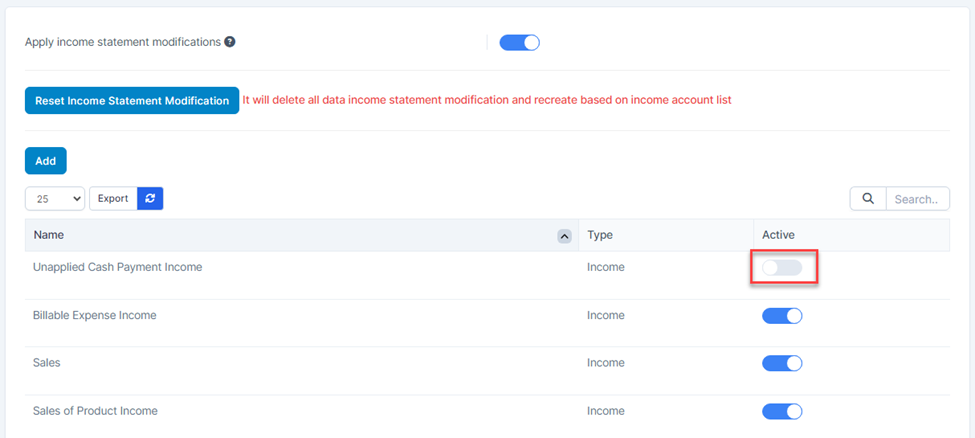
Otherwise, if disabled, the active rows will not be displayed in the report

Management
We have default accounts of Income type
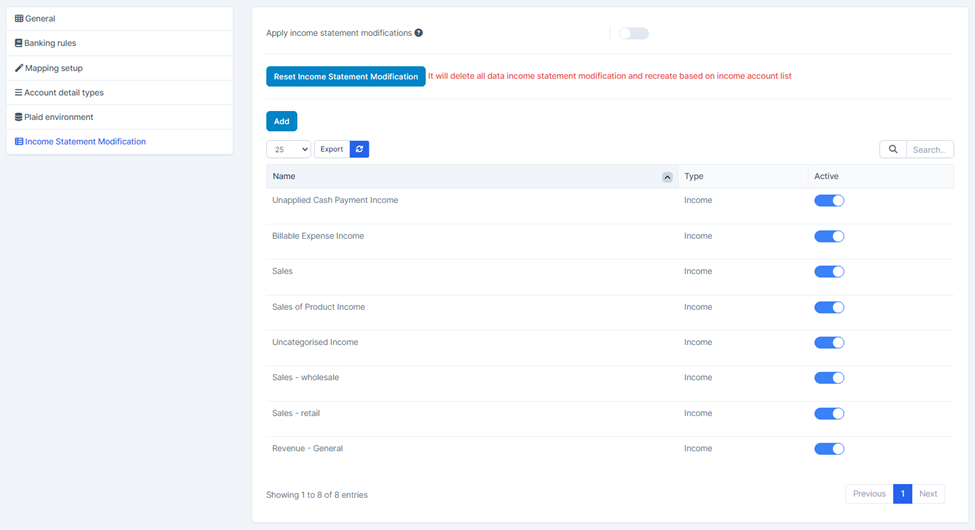
Create
Step 1. Go to Settings menu under Accounting module from the left sidebar
Step 2. Click the Income Statement Modification menu
Step 3. Click Add button

In the Income Statement Modification page, fill in the following details:
1. Enter the Name of the income statement row
2. Select a type: Income or Net Income
3. Click (+)to add [removed]+, -, *, /) and choose an account
Click (-)to remove an expression.

formula: Income A = Billable Expense Income + Sales + Uncategorised Income.

Reports affected:
· Balance Sheet Comparison
· Balance Sheet Detail
· Balance Sheet Summary
· Balance Sheet
· Statement of Cash Flows
· Profit and Loss
· Profit and Loss comparison
· Profit and Loss year-to-date comparison
· Profit and Loss trailing 12 months
· Profit and Loss as % of total income
Enable/Disable row
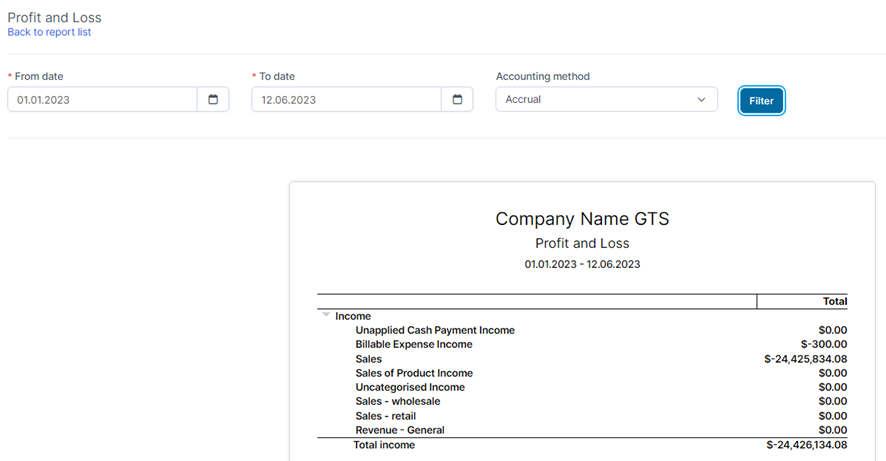
When enabling/disabled a line, it affects the data of reports
Enable Apply income statement modifications and row so it shows up on the report.
Disable the row so it doesn’t show up on the report
Edit
To edit a row:
Step 1. Go to Settings menu under Accounting module from the left sidebar
Step 2. Click the Income Statement Modification menu
Step 3. Hover over the row that you wish to edit and click Edit

· Step 4. Mark the necessary changes.
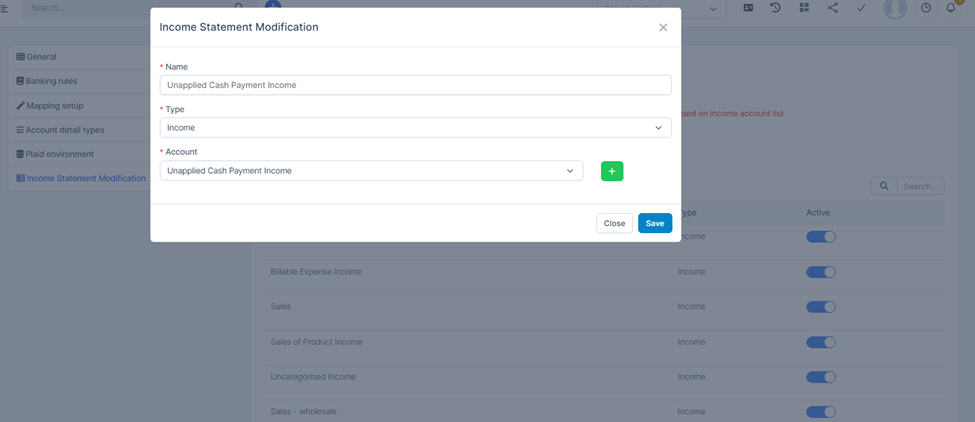
Step 5. Click Save
Delete
To delete a row from report :
· Step 1. Go to Settings menu under Accounting module from the left sidebar
· Step 2. Click the Income Statement Modification menu
· Step 3. Hover over the row that you wish to delete and click Delete

Step 4. Confirm to delete

Found this article helpful?
[ 0 Out of 1 Found Helpful ]